安装 Xdebug 并且接入PhpStorm
安装 Xdebug 并且接入PhpStorm
安装
下载xdebug方法1:
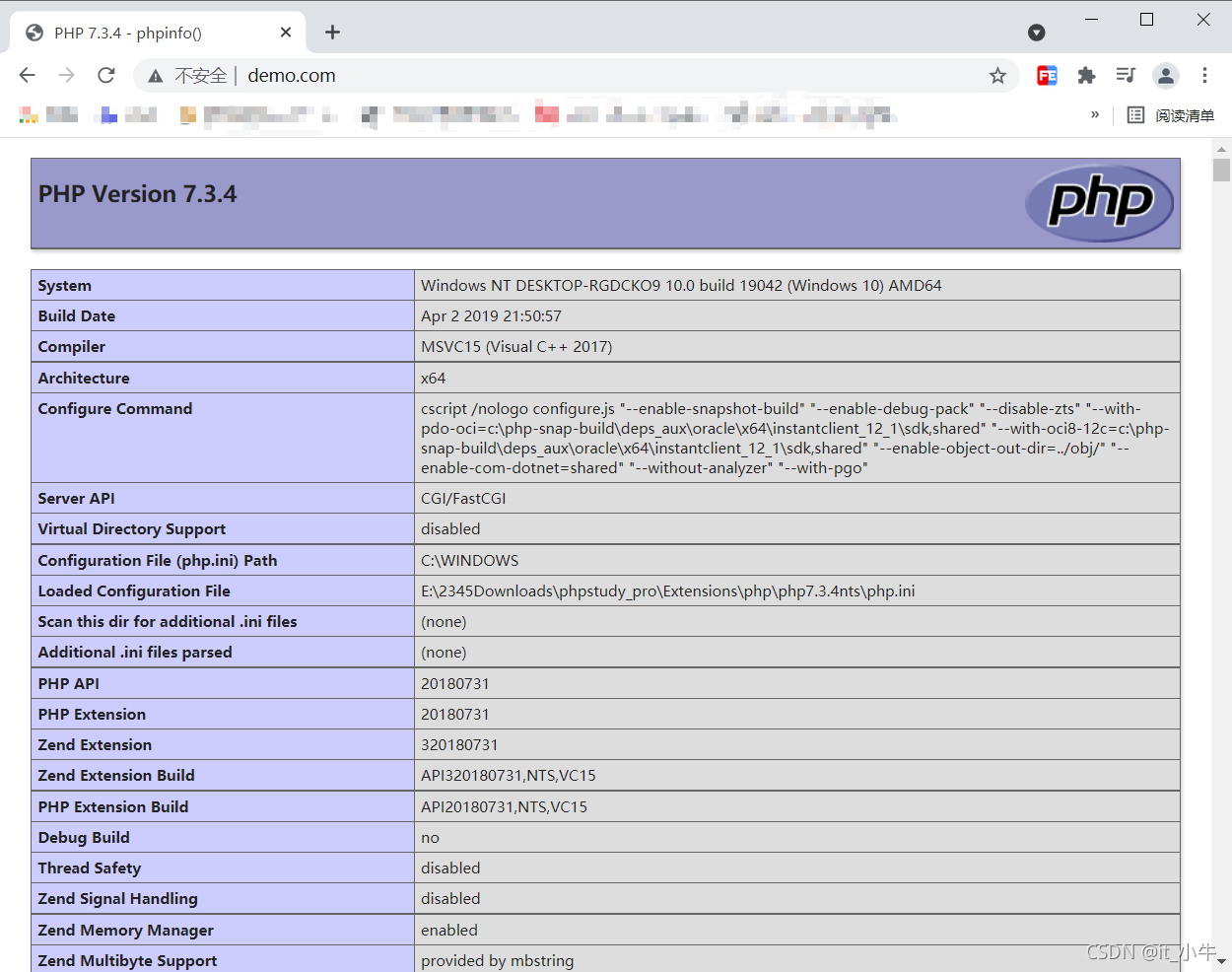
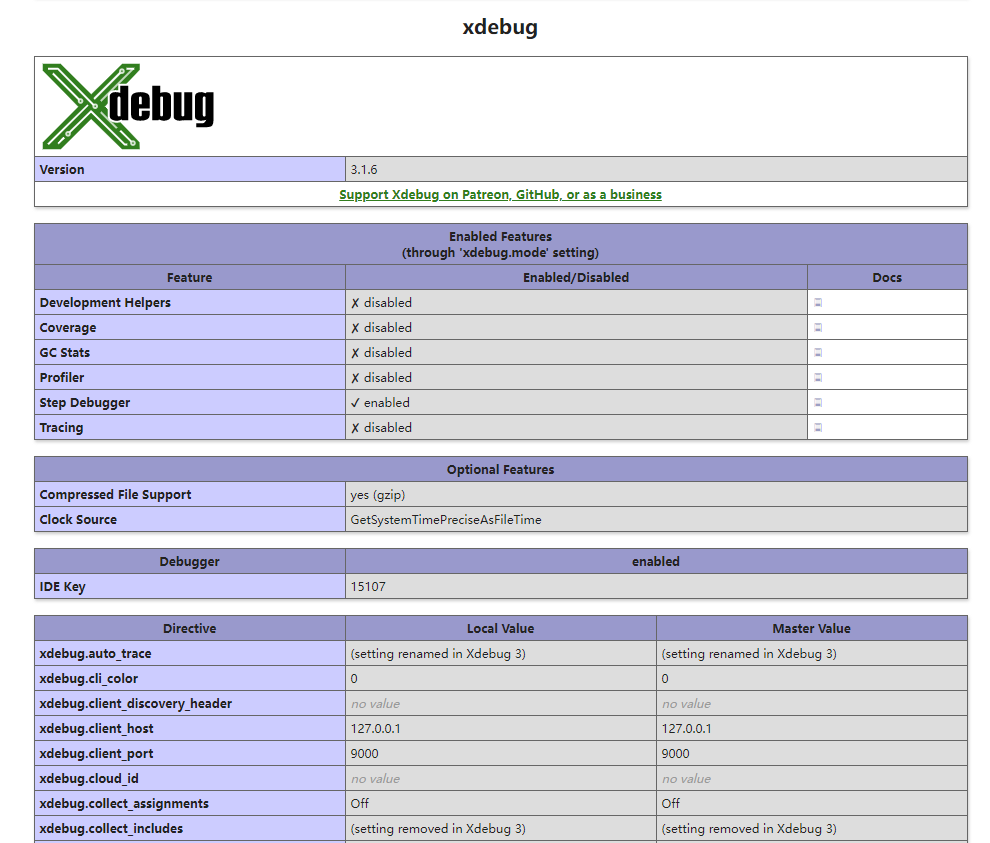
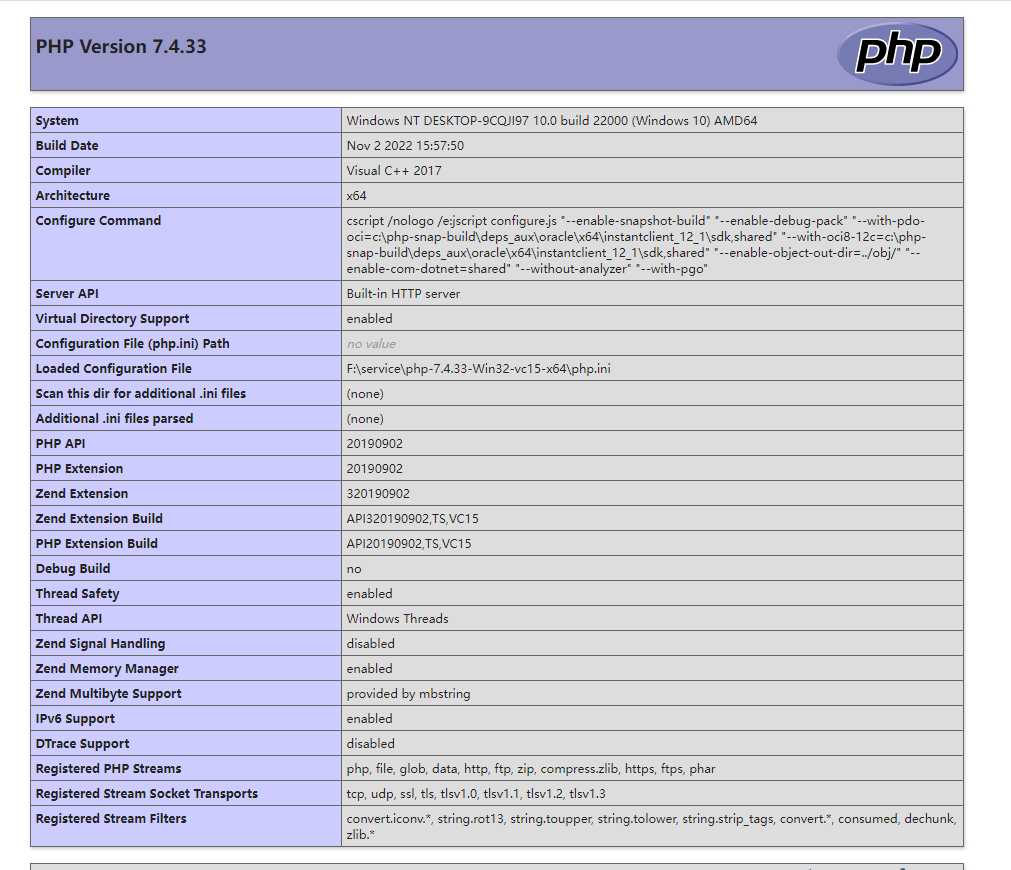
1、打开phpinfo;
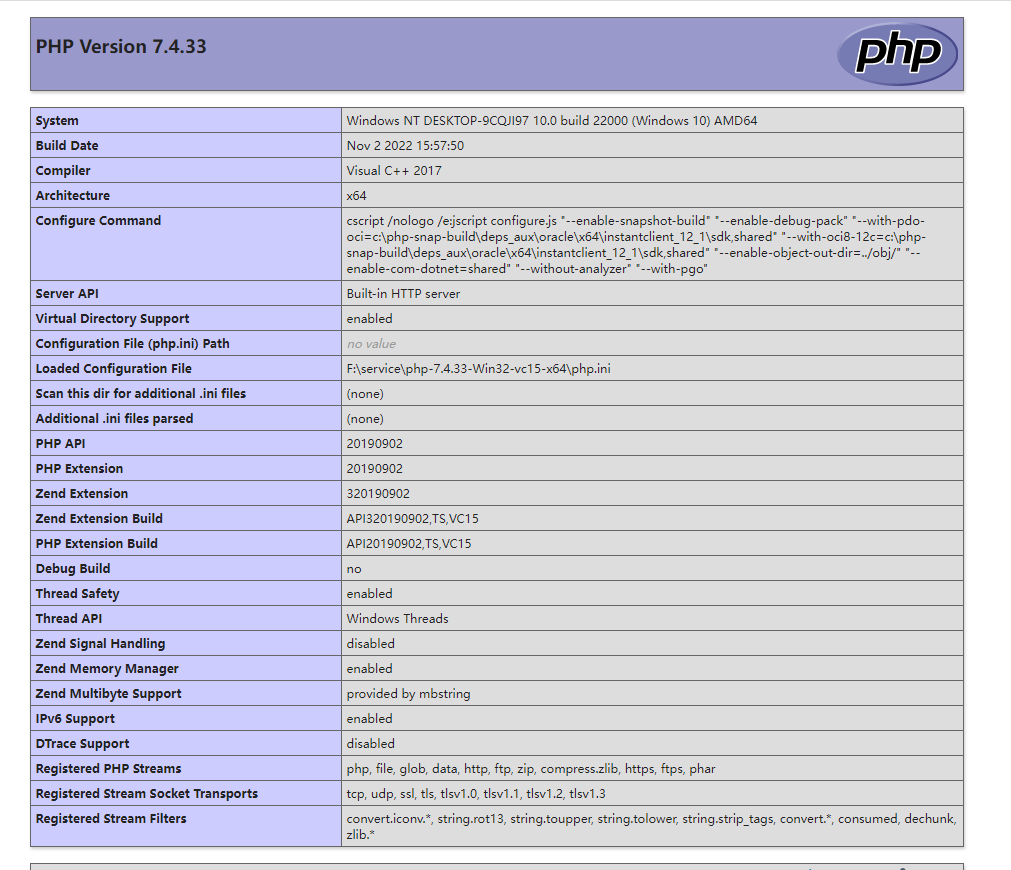
红框里的都是下载时需要注意的信息;
2、打开xdebug官网并进入下载页面下载
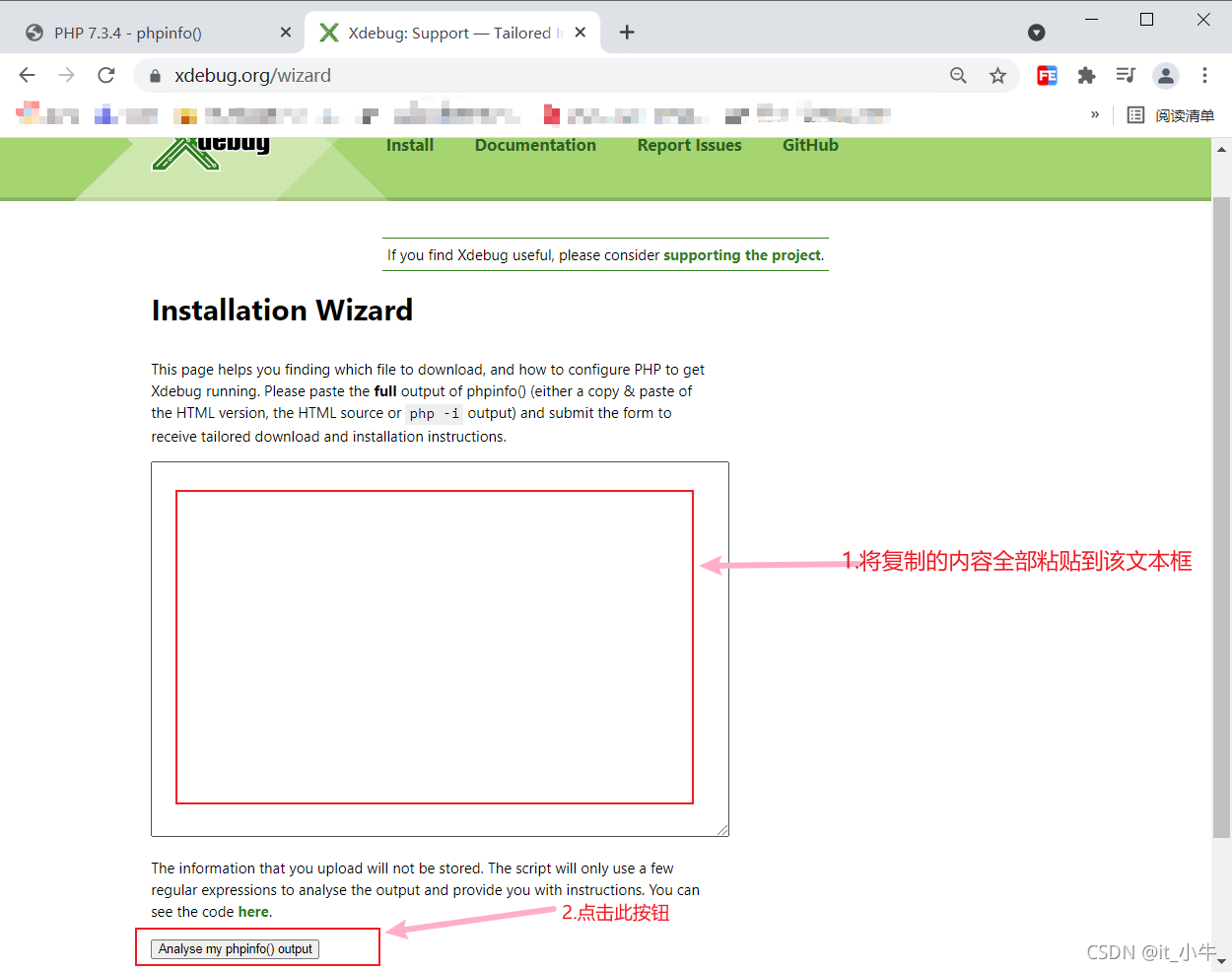
这时可以按照上面的phpinfo信息进行对应的下载,如php7.3,VC5,nts非线程安全和电脑是64位还是32位系统。
下载xdebug方法2:
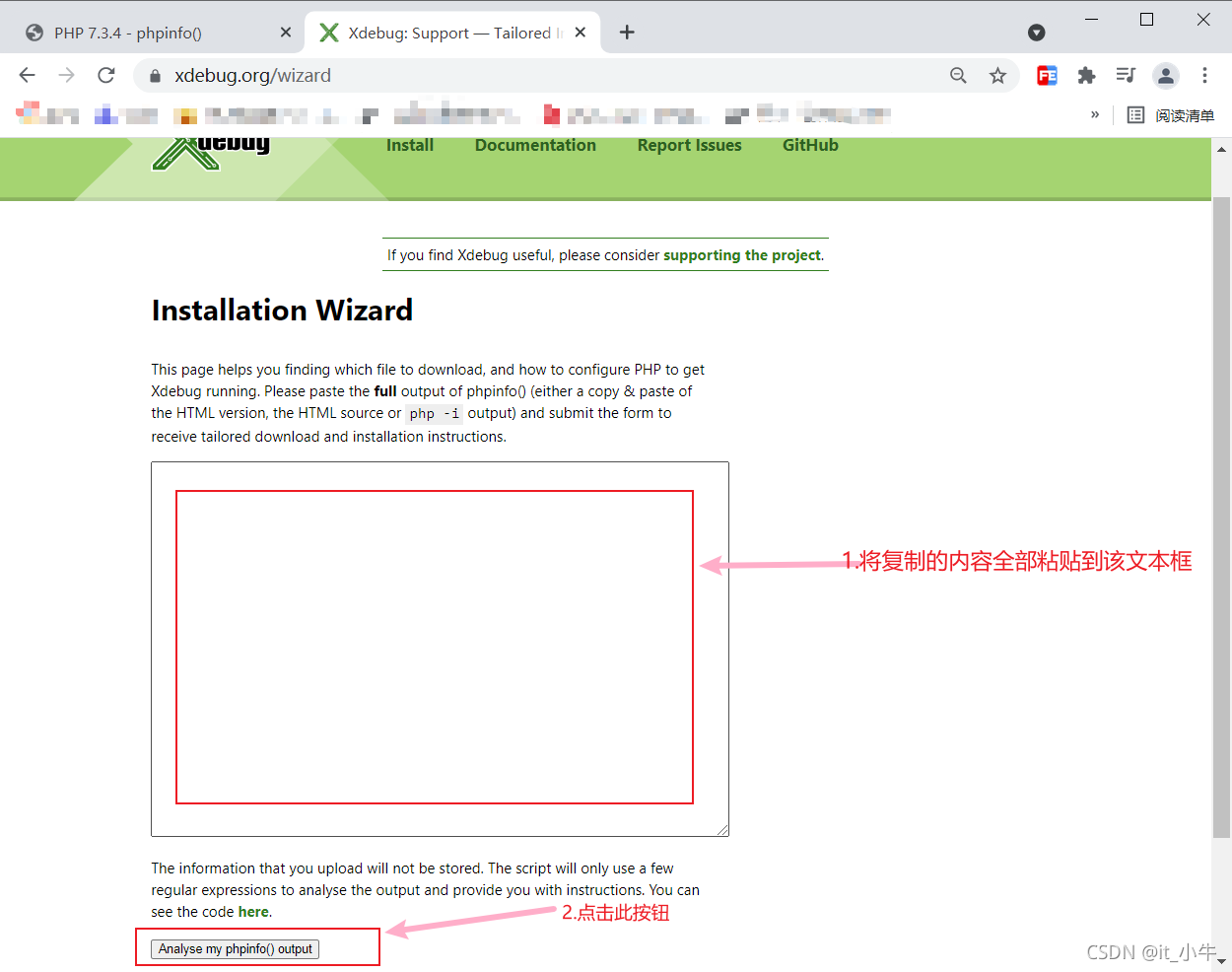
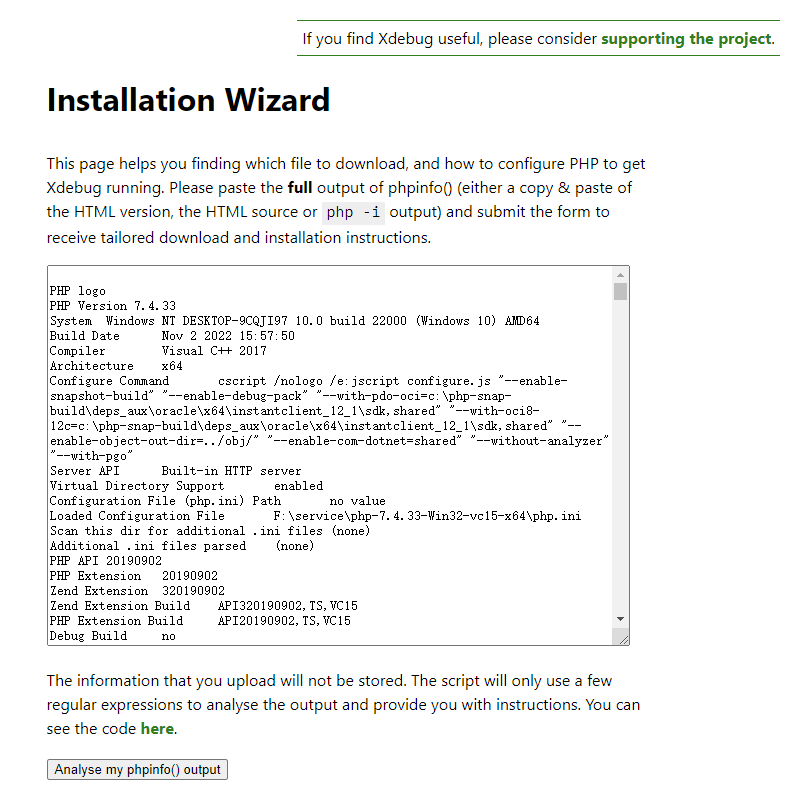
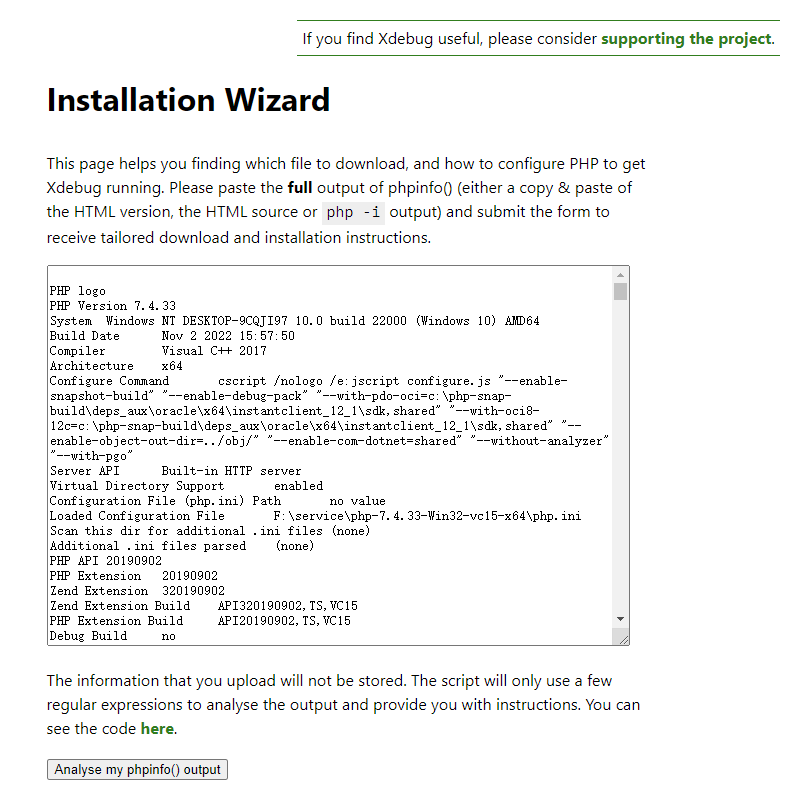
打开https://xdebug.org/wizard.php这个网站,复制phpinfo的所有信息并粘贴到页面中,如图:
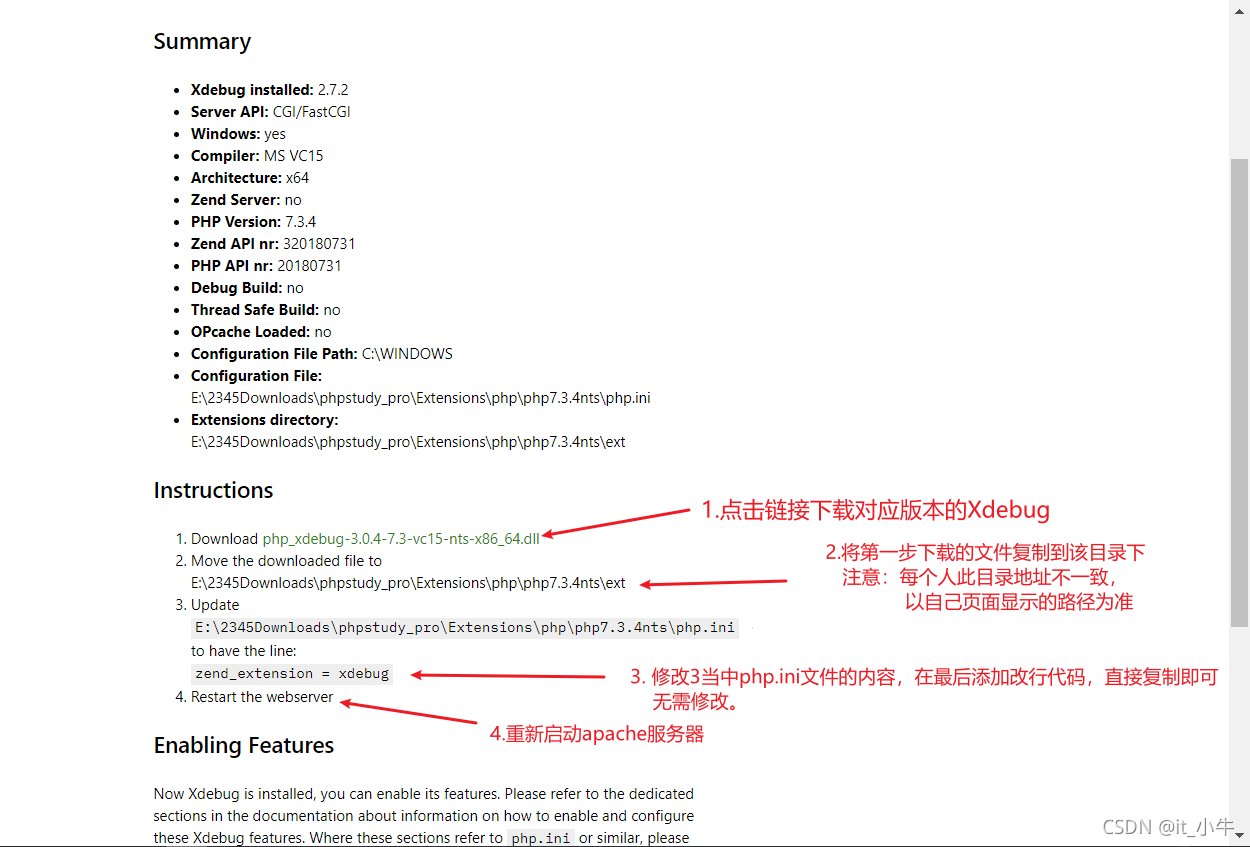
点击下载xdebug
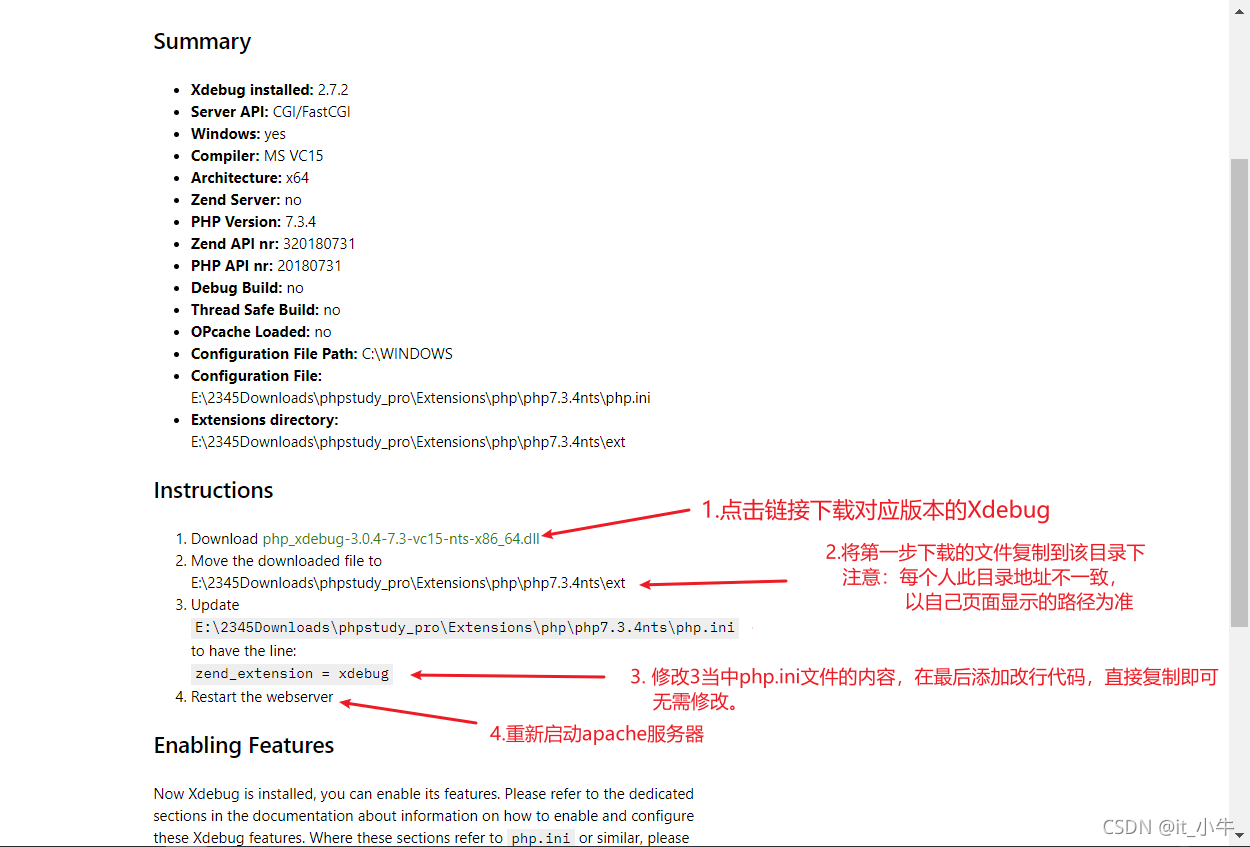
二、配置php.ini文件的xdebug参数
1、打开对应php版本的php.ini,在文件中加上xdebug配置信息
[xdebug]
;把xdebug文件放在对应的php版本文件下
zend_extension ="E:/SORF/phpstudy_pro/Extensions/php/php7.3.4nts/php_xdebug-2.8.0-7.3-vc15-nts-x86_64.dll"

xdebug.remote_enable = On
;启用性能检测分析
xdebug.profiler_enable = On
;启用代码自动跟踪
xdebug.auto_trace=On
;允许收集函数调用的返回值
xdebug.collect_return=On
xdebug.profiler_enable_trigger = On
xdebug.profiler_output_name = cachegrind.out.%t.%p
;指定性能分析文件的存放目录
xdebug.profiler_output_dir ="E:/SORF/phpstudy_pro/Extensions/tmp/Xdebug"
xdebug.trace_output_dir = "E:/SORF/phpstudy_pro/Extensions/tmp/Xdebug"
xdebug.profiler_output_dir = "E:/SORF/phpstudy_pro/Extensions/tmp/Xdebug"
xdebug.show_local_vars=0
xdebug.idkey="PHPSTORM"
xdebug.var_display_max_depth=10
;配置端口和监听的域名
xdebug.remote_port=9100
xdebug.remote_handler=dbgp
xdebug.remote_host="127.0.0.1"
2、报存文件并重启服务
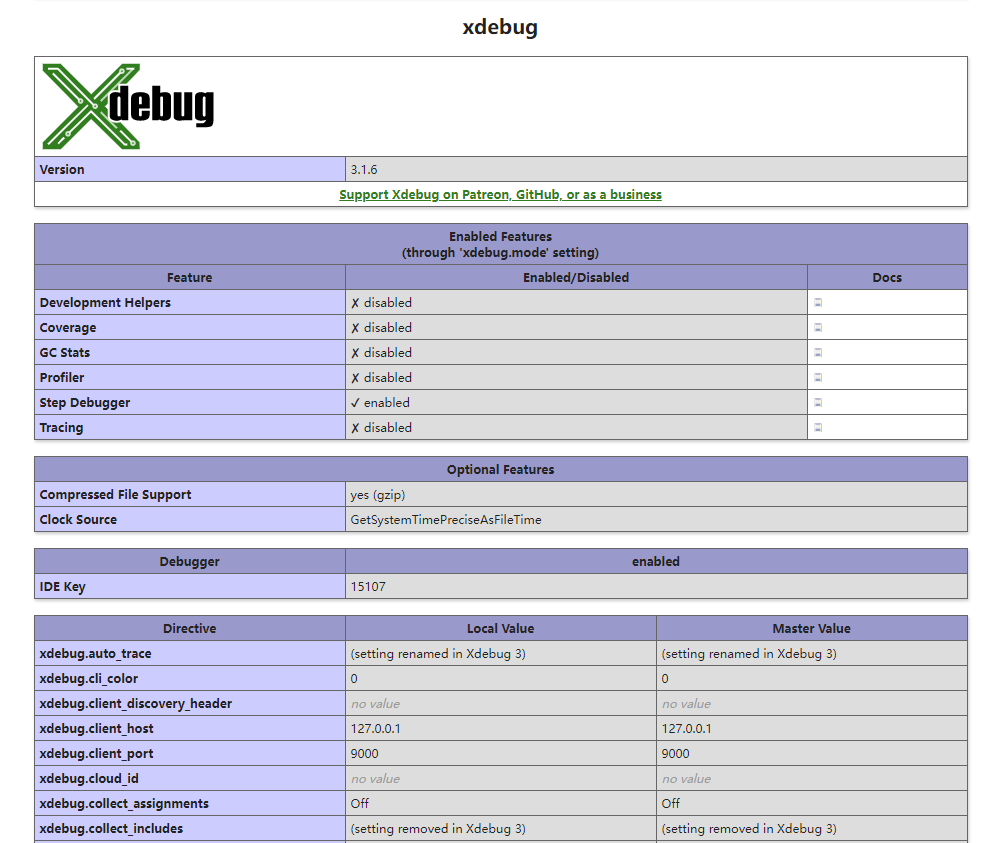
打开phpinfo能看到下面就表示xdebug扩展安装成功了
三、phpstrom配置
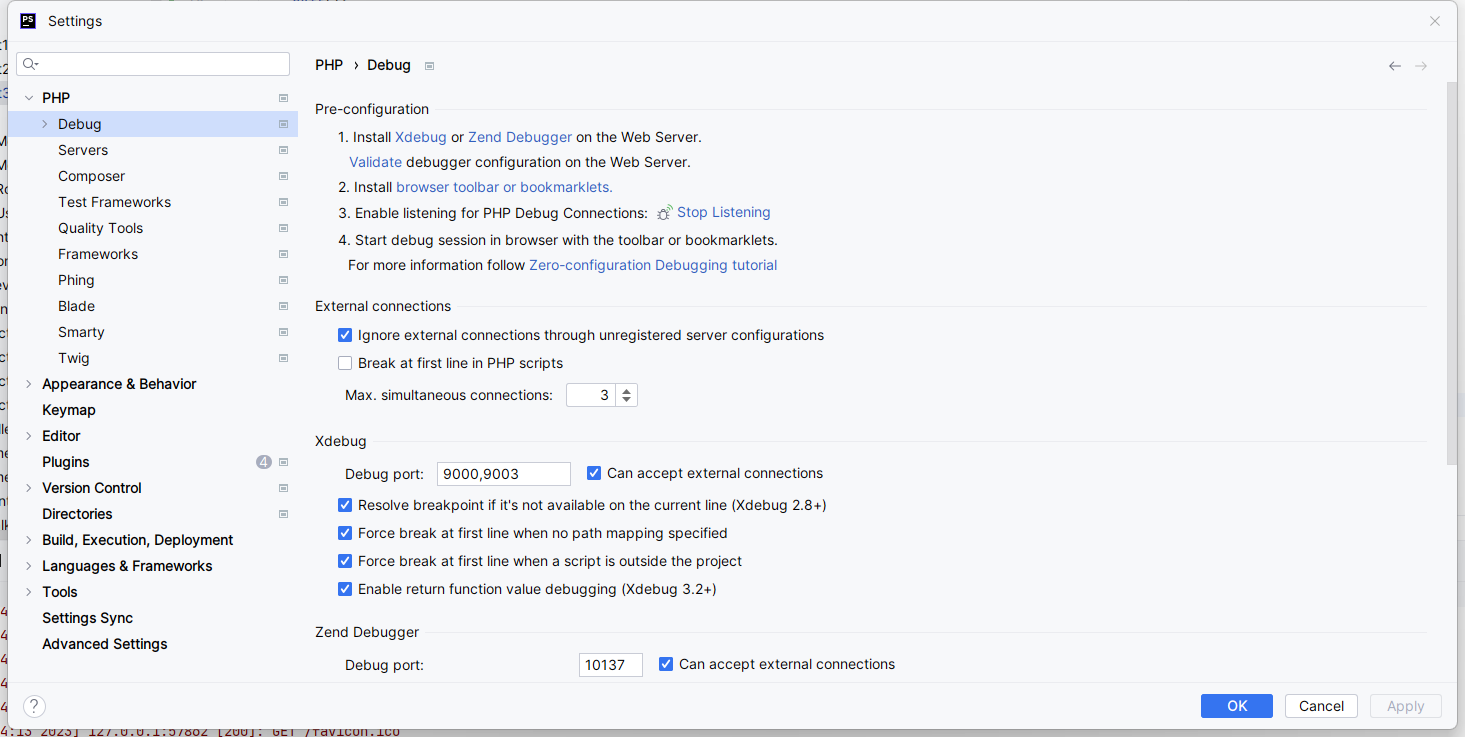
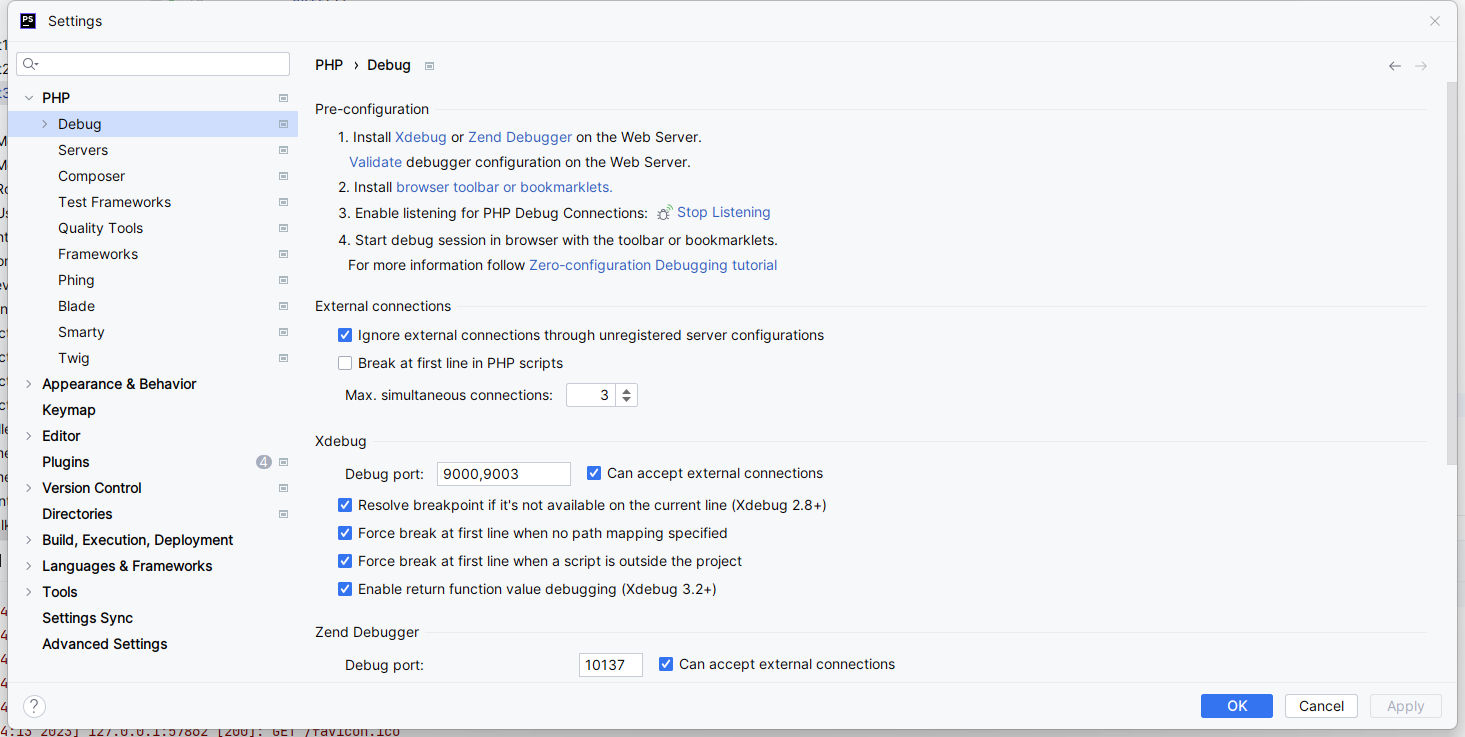
打开phpstorm->file/文件->setting/设置,然后如图操作
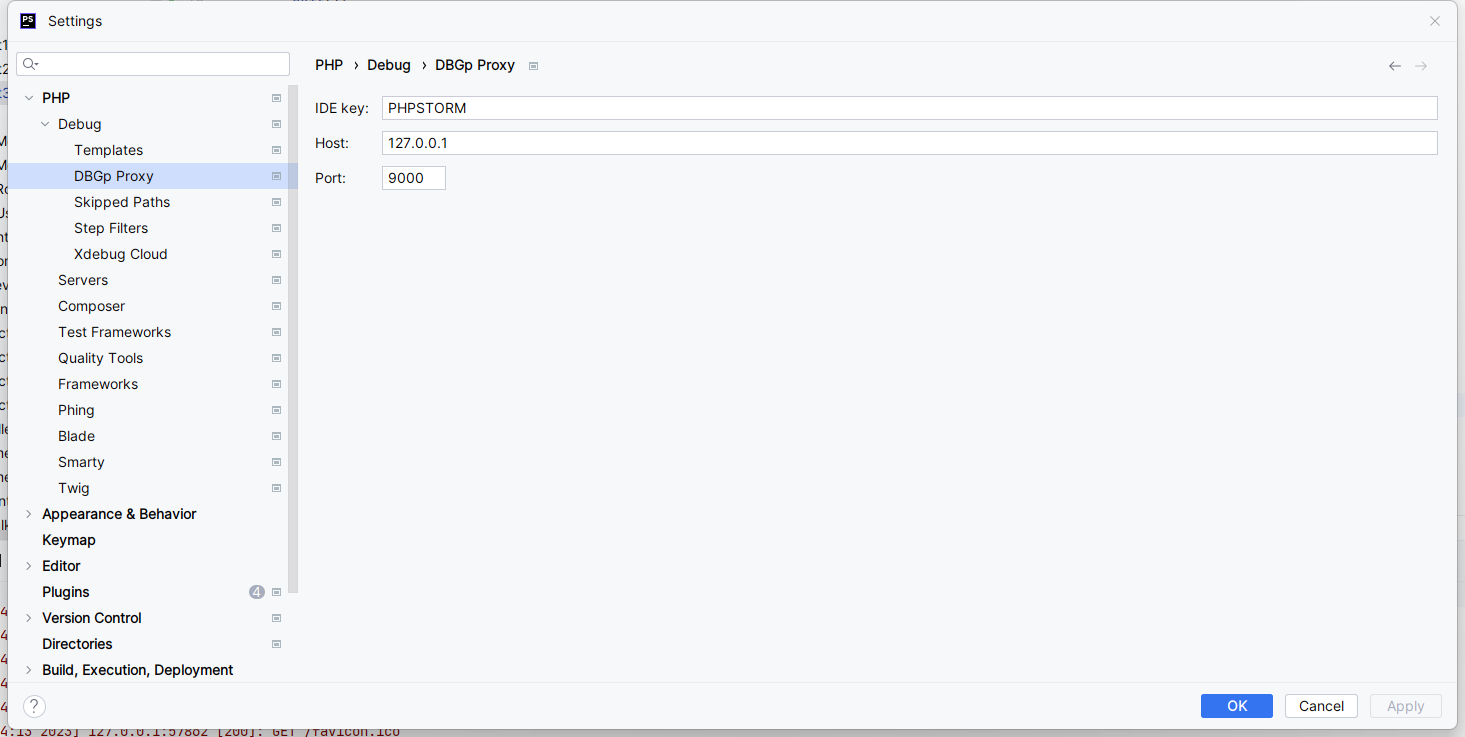
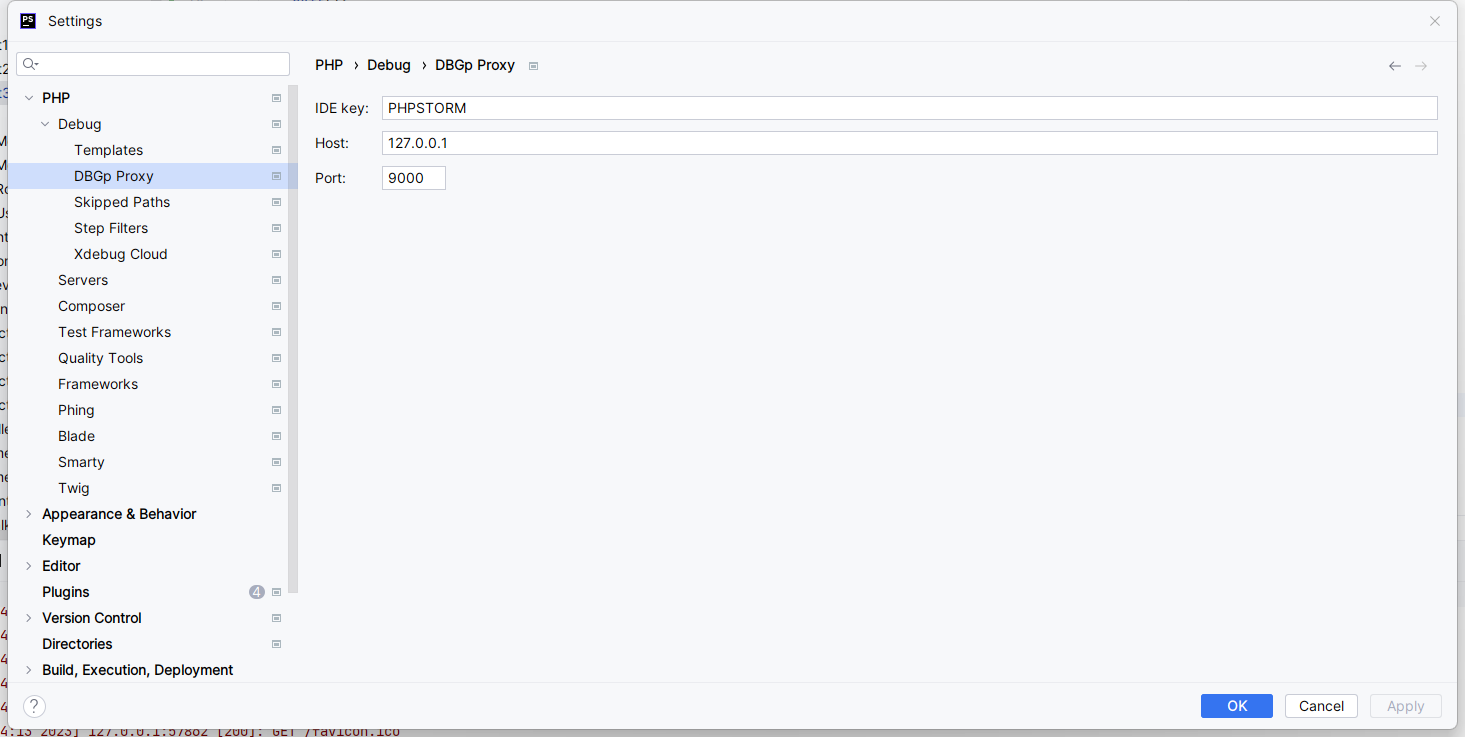
继续填写xdebug代理
填好后点击应用,再点击确定
四、为项目配置debug
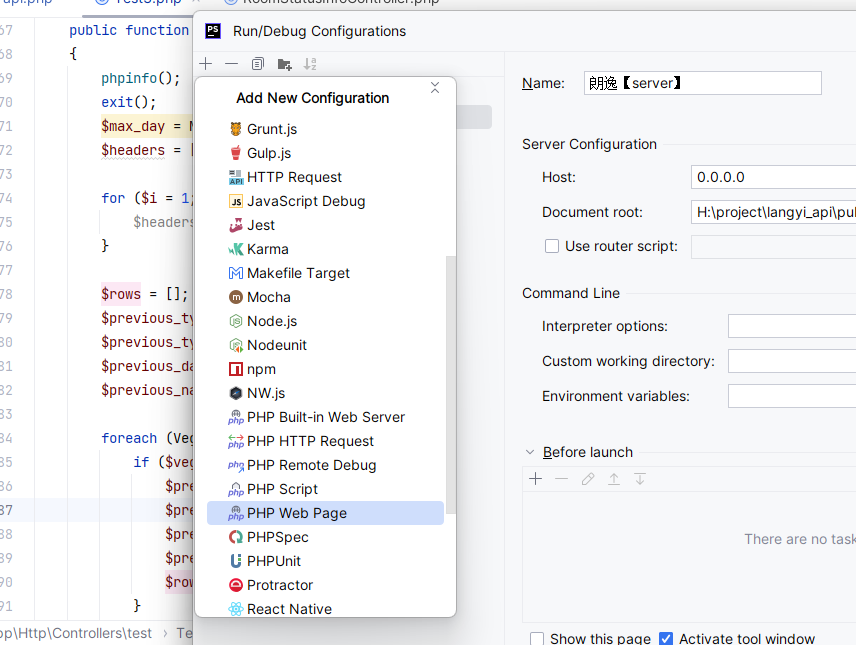
1、右上角
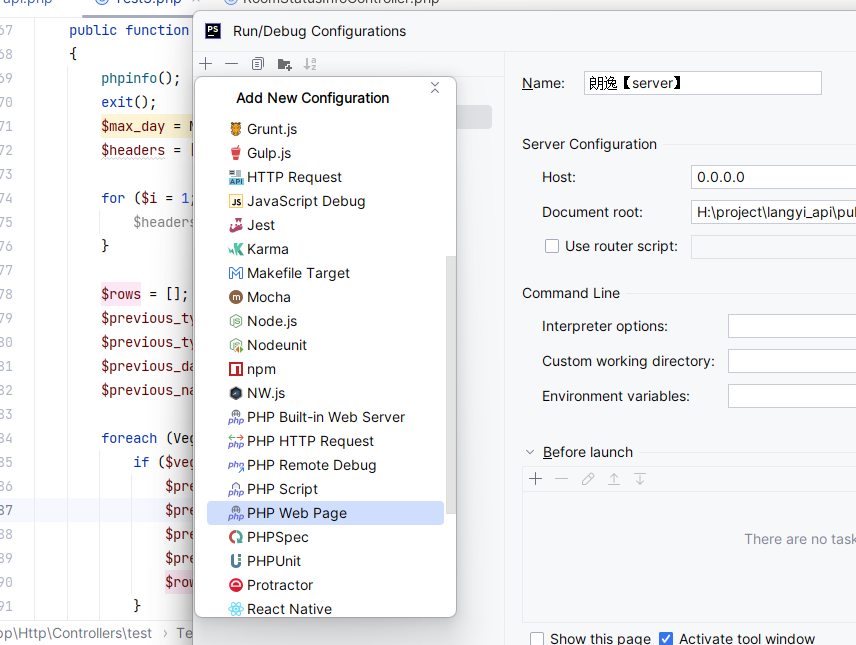
2、选择PHP Web Page
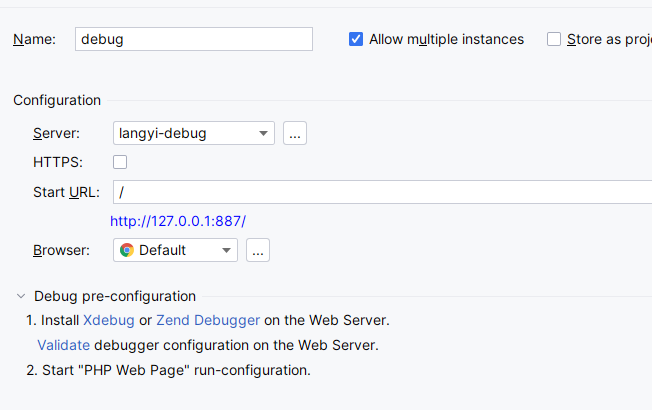
3、PHP Web Page页面
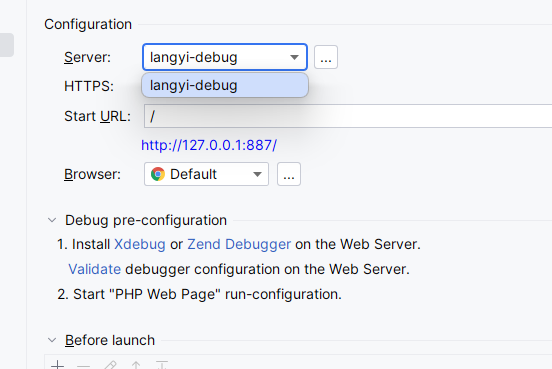
4、
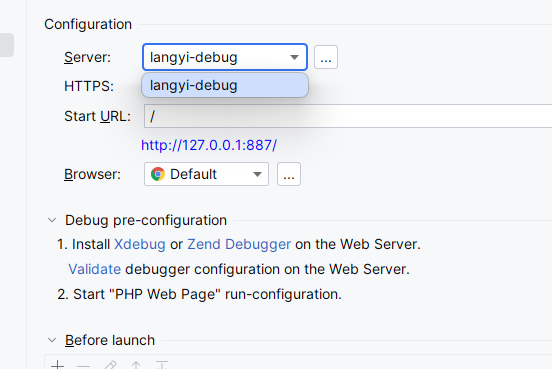
postman
添加cookie XDEBUG_SESSION=PHPSTORM;
五、调试
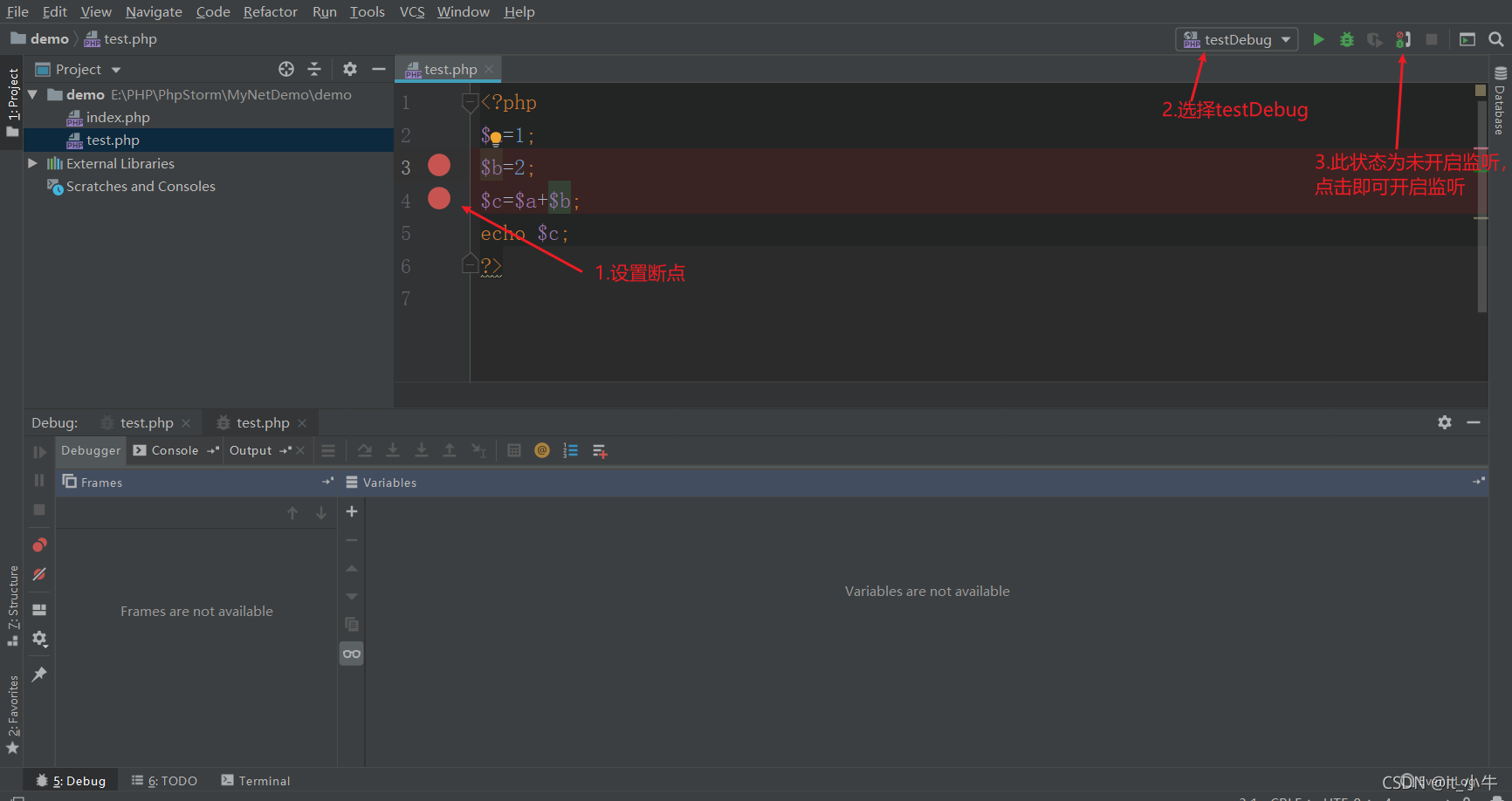
在需要调试的地方打断点
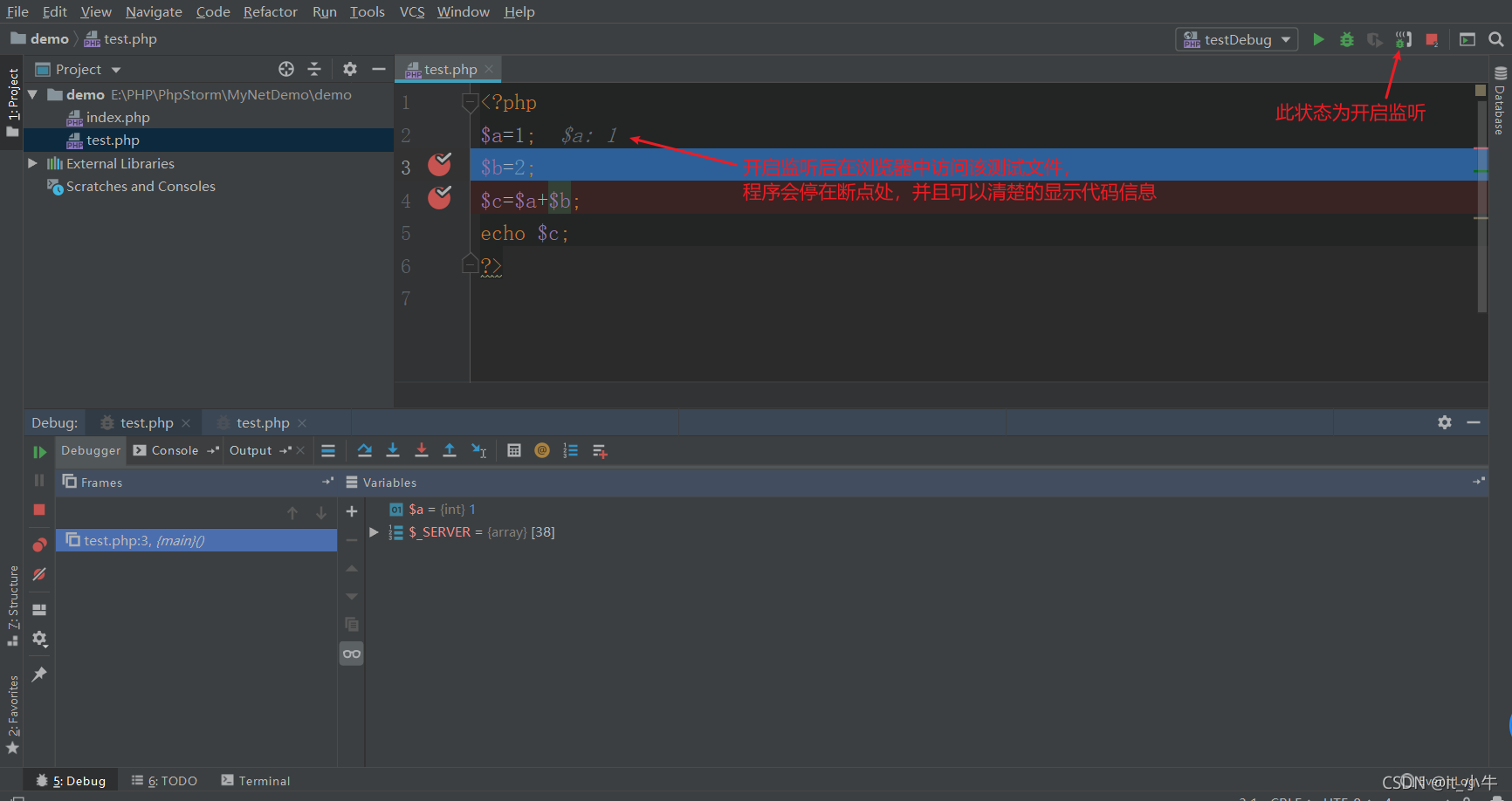
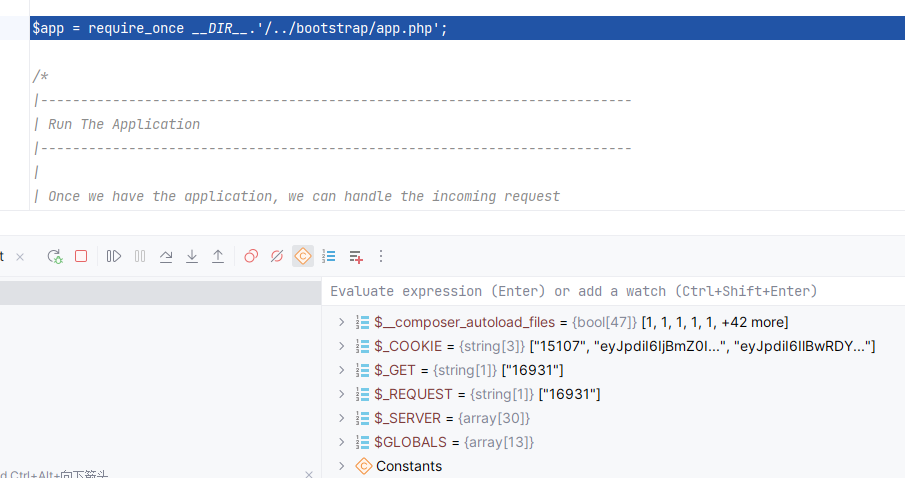
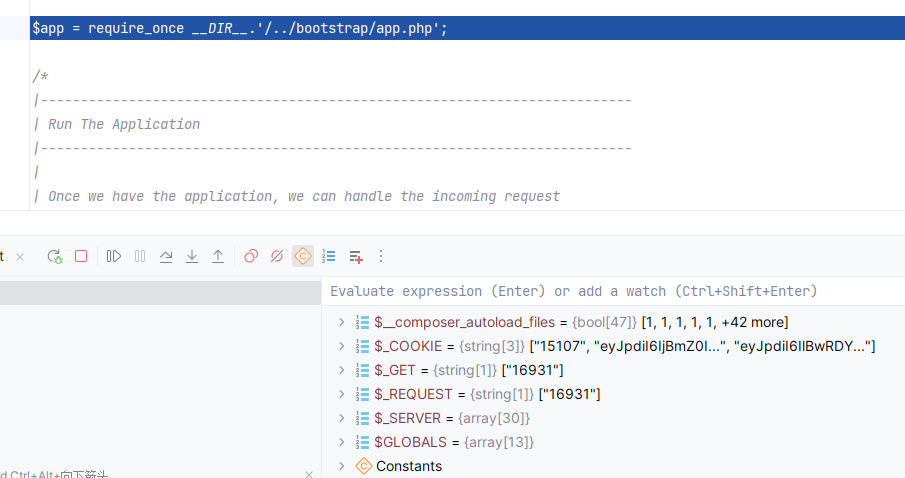
开始调试
安装好后发现一个问题,安装xdebug非常影响系统性能,原来几秒打开的页面,安装后可能需要十几秒甚至更多的时间打开。
安装方式2
一、什么是Xdebug
作为程序员,在开发过程中,调试是一定会经历的过程,Xdebug是一个开放源代码的PHP程序调试器,可以帮助开发人员追踪、调试和分析PHP程序的运行状况。
二、安装步骤
获取并安装配置Xdebug
Xdebug和当前使用的PHP环境版本有密切的关系,在下载时需要选择与之对应的版本。在选择版本时可以借助Xdebug官方提供的一个检测工具来快捷地选择合适的版本。
检测PHP环境信息。在本地站点中新建一个后缀为 .php 文件,在该文件中输入以下代码:
<?php
echo phpinfo();
?>
分析版本信息。运行上面的 .php 文件,文件结果如上图,全选复制该页面中的所有信息。在浏览器中访问该链接https://xdebug.org/wizard,将之前复制的信息粘贴到下图所示的文本框中,然后单击红色方框中的按钮。
Xdebug官网会自动分析提交的PHP 环境信息并给出下载链接,按照给出的提示信息进行下载即可。提示信息如下:
进行上面的配置步骤 ,然后检查是否安装成功。重新运行第一步中创建的 .php 文件,如果返回信息中包含下图所示的xdebug相关信息,则说明安装成功。
在phpStorm中使用Xdebug
1)修改配置信息。编辑 E:\2345Downloads\phpstudy_pro\Extensions\php\php7.3.4nts\php.ini 文件,增加如下调试配置信息并重启Apache服务(路径信息根据实际情况做调整)。
xdebug.profiler_append = 0
;效能检测的设置开关
xdebug.profiler_enable = 1
xdebug.profiler_enable_trigger = 0
;profiler_enable 设置为1的时候,效能监测信息写入文件所在的目录,可以自定义
xdebug.profiler_output_dir = "E:\PHP\phpstudy_pro\tmp\xdebug"
;设置的函数调用监测信息的输出路径,可以自定义
xdebug.trace_output_dir = "E:\PHP\phpstudy_pro\tmp\xdebug"
;生成的效能监测文件的名称
xdebug.profiler_output_name = "cache.out.%t-%s"
;远程开启 1 表示默认远程开启 0 表示关闭
xdebug.remote_enable = 1
xdebug.remote_handler = dbgp
;远程主机地址 这里设置的是我们本地解析的域名
xdebug.remote_host = www.demo.com
;远程自动启动 1 表示开始  0 表示关闭
xdebug.remote_autostart = 1
;远程端口 可自己定义
xdebug.remote_port = 9100
xdebug.idekey = PHPSTORM
2)打开phpStorm软件,设置Xdebug端口。选择 “File” -----> “Settings” 命令,打开“Setting”对话框,选择 “Languages & Frameworks” -----> “PHP” ----->“Debug” 选项,如下图所示,将端口修改为9100(和上面 php.ini 中配置的xdebug.remote_port = 9100 保持一致即可),然后单击“Apply”按钮。
3)配置DBGp Proxy。在 “Settings” 对话框中,选择 “PHP” ----> “Debug” ----> “DBGp Proxy” 选项,在对话框中填写 “IDE Key” (和xdebug.idekey=PHPSTORM保持一致)和 “Host” (和xdebug.remote_host = www.demo.com 保持一致),“Port” 默认为9001可以不修改,单击"Apply" 按钮.
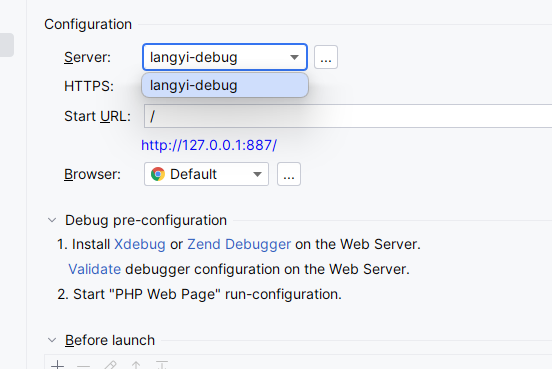
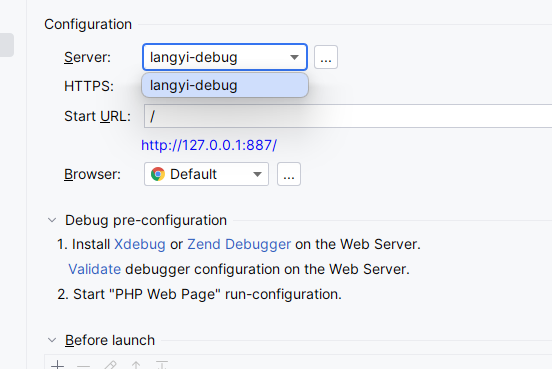
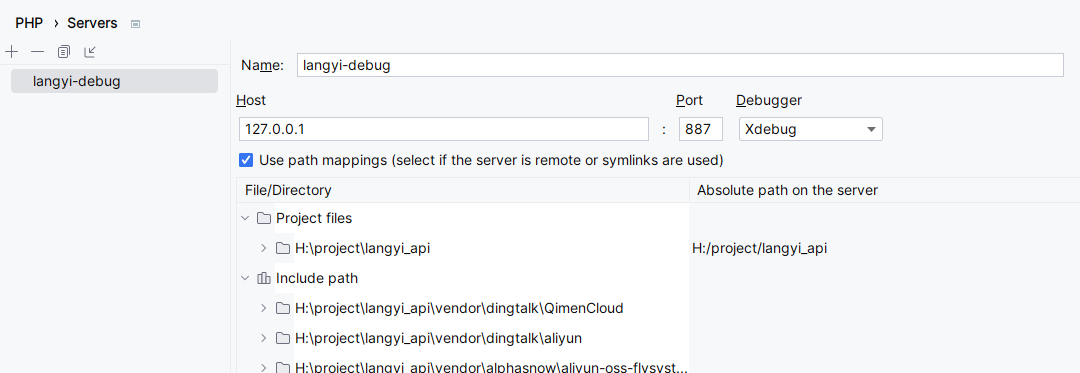
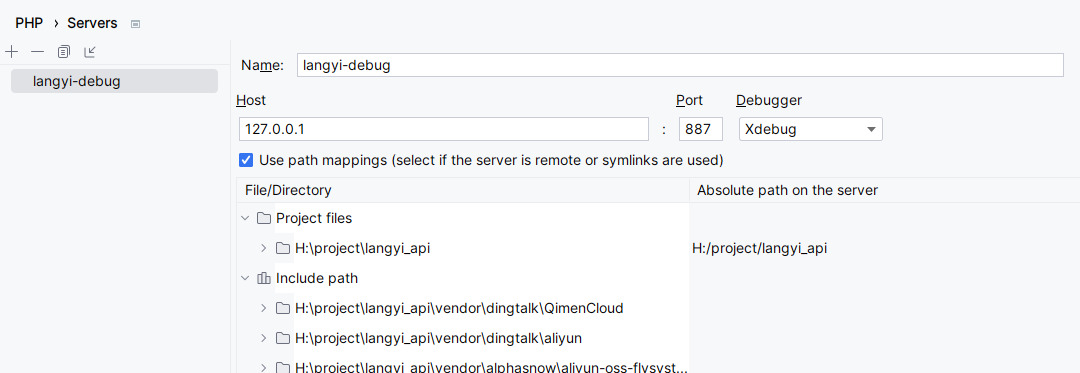
4)配置Servers。在 “Settings” 对话框中,选择 “PHP” ----> “Servers” 选项,创建本地调试服务器,点击应用即可。操作步骤如下:
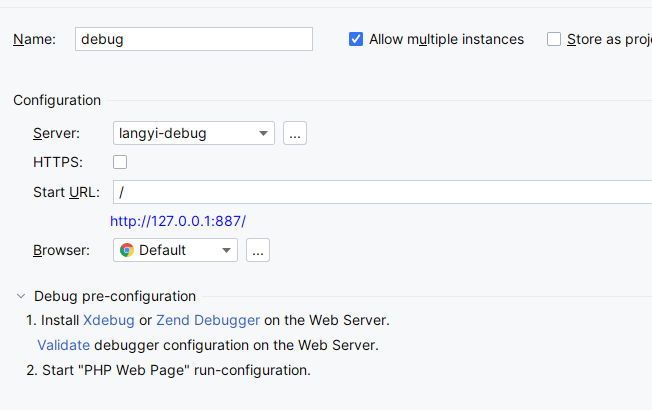
5)配置测试项目。选择 “Run” ----> “ Edit Configurations” 命令,新建一个运行调试配置。操作步骤如下:
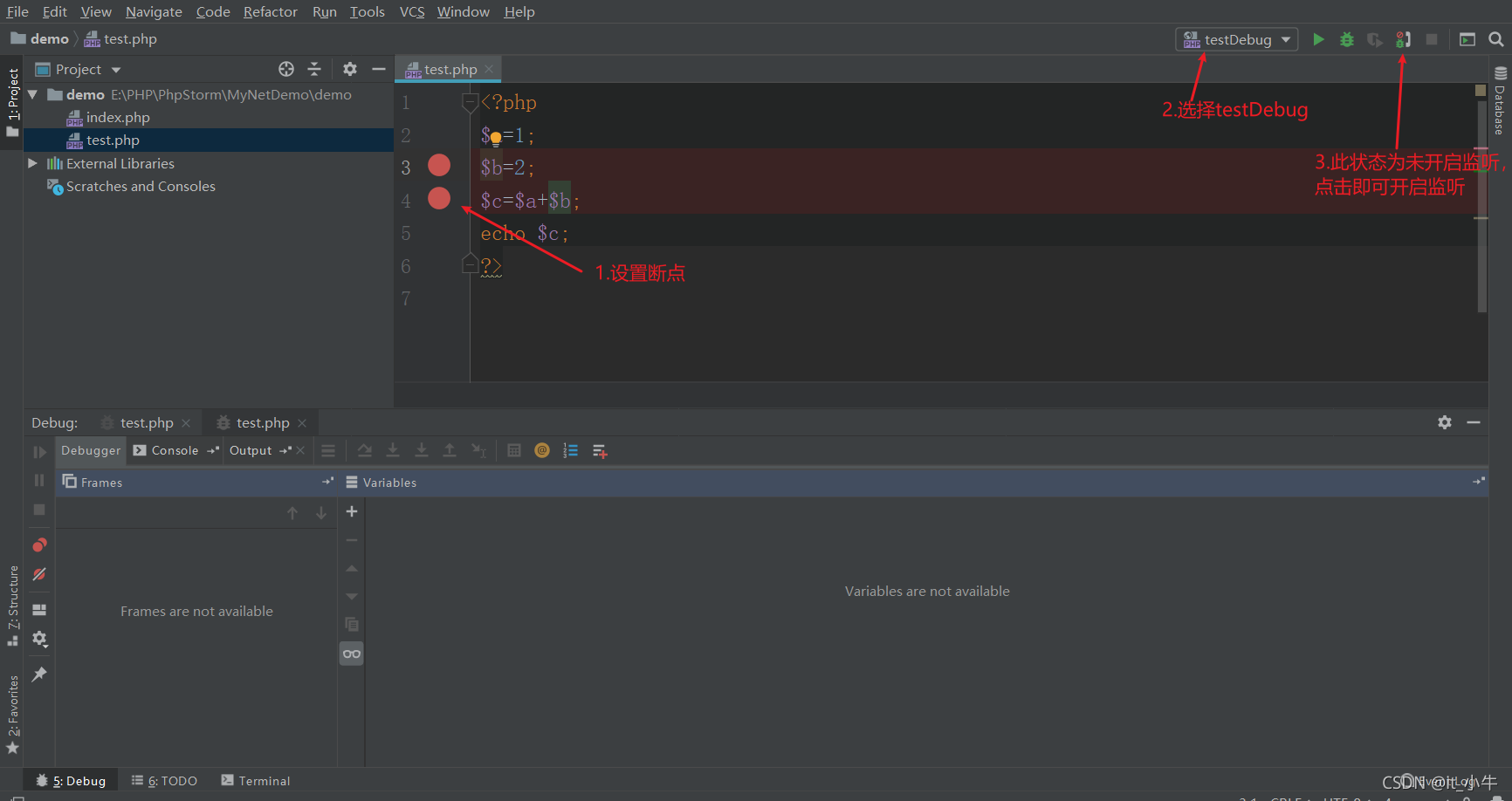
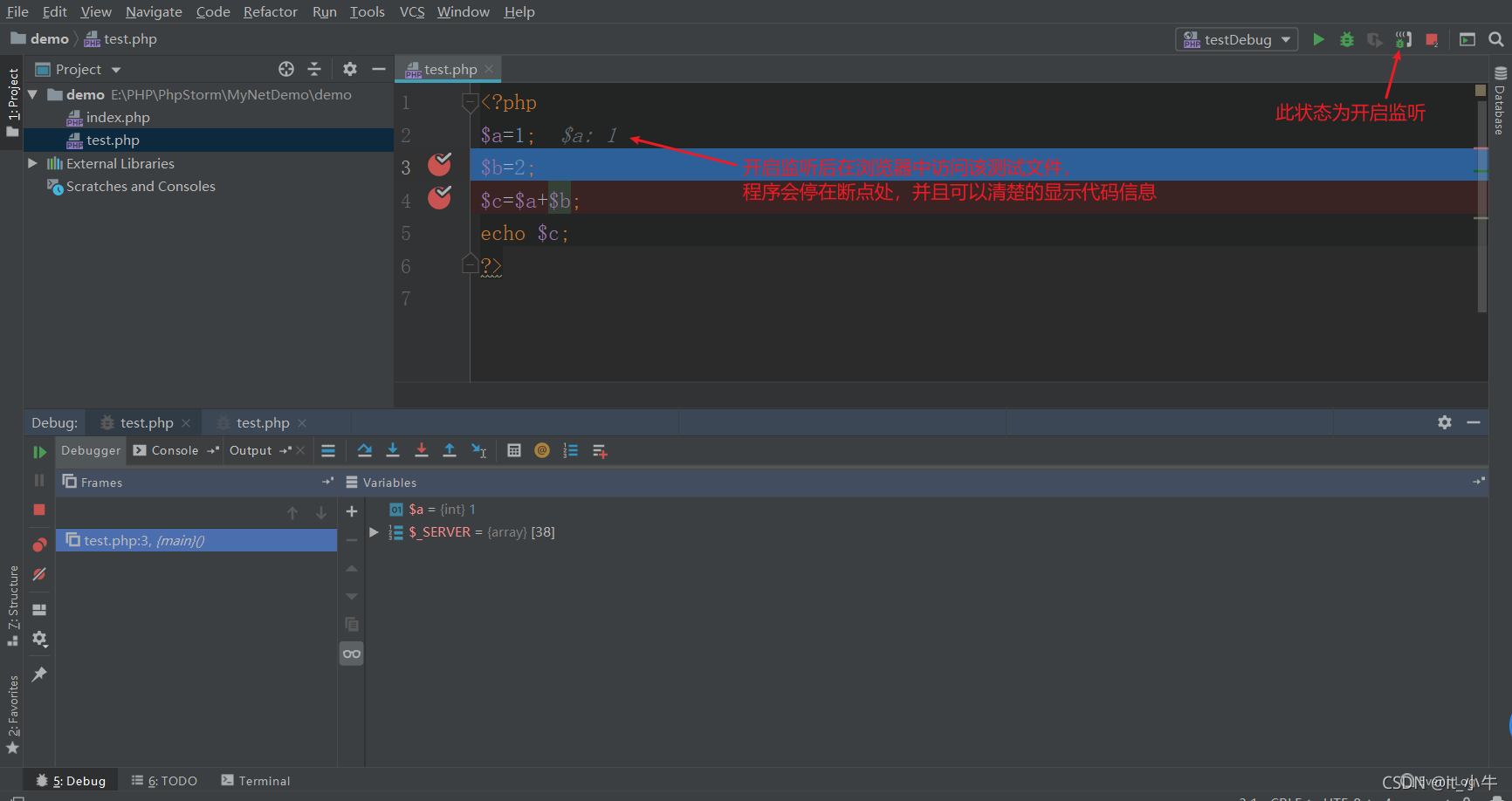
6)断点测试。在项目中新建一个名为“test.php”的文件,单击代码视图行号的位置新增一个断点。在窗口右上角选择 “testDebug" 的调试配置,单击 “Start | Stop Listening for PHP Debug Connections” 按钮,如下图所示:
配置:
xdebug3
[xdebug]
zend_extension="<path to xdebug extension>"
xdebug.mode=debug
xdebug.client_host=127.0.0.1
xdebug.client_port="<the port (9003 by default) to which Xdebug connects>"
xdebug2
[xdebug]
zend_extension="<path to xdebug extension>"
xdebug.remote_enable=1
xdebug.remote_host=127.0.0.1
xdebug.remote_port="<the port (9000 by default) to which Xdebug connects>"
Configure Xdebug
Download Xdebug
Download the Xdebug extension compatible with your PHP version and install it as described in the installation guide.
Xdebug 3 brings performance improvements, simplified configuration, and PHP 8 support. To learn more on upgrading to Xdebug 3, see the Upgrade guide.
If you are using an AMP package, the Xdebug extension may be already installed. Refer to the instructions specific for your package.
Integrate Xdebug with the PHP interpreter
Open the active php.ini file in the editor:
- In the Settings dialog (Ctrl+Alt+S), click PHP.
- On the PHP page that opens, click
 next to the CLI Interpreter field.
 - In the CLI Interpreters dialog that opens, the Configuration file read-only field shows the path to the active php.ini file. Click Open in Editor.
To disable the Zend Debugger and Zend Optimizer tools, which block Xdebug, remove or comment out the following lines in the php.ini file:
zend_extension=<path_to_zend_debugger>
zend_extension=<path_to_zend_optimizer>
- To enable Xdebug, locate or create the
[xdebug]section in the php.ini file and update it as follows:
Xdebug 3
[xdebug]
zend_extension="<path to xdebug extension>"
xdebug.mode=debug
xdebug.client_host=127.0.0.1
xdebug.client_port="<the port (9003 by default) to which Xdebug connects>"
Xdebug 2
[xdebug]
zend_extension="<path to xdebug extension>"
xdebug.remote_enable=1
xdebug.remote_host=127.0.0.1
xdebug.remote_port="<the port (9000 by default) to which Xdebug connects>"
In PHP 5.3 and later, you need to use only
zend_extension, notzend_extension_ts,zend_extension_debug, orextension.
To enable multi-user debugging via Xdebug proxies, locate the xdebug.idekey setting and assign it a value of your choice. This value will be used to register your IDE on Xdebug proxy servers.
- Save and close the php.ini file.
Verify Xdebug installation by doing any of the following:
In the command line, run the following command:
php --version
The output should list Xdebug among the installed extensions:

Create a php file containing the following code:
<?php
phpinfo();
Open the file in the browser. The `phpinfo` output should contain the Xdebug section:

Configure Xdebug in PhpStorm
Check Xdebug installation
- Press Ctrl+Alt+S to open the IDE settings and select PHP.
Check the Xdebug installation associated with the selected PHP interpreter:
- On the PHP page, choose the relevant PHP installation from the CLI Interpreter list and click next to the field. The list shows all the PHP installations available in PhpStorm, see Configure local PHP interpreters and Configure remote PHP interpreters.
The CLI Interpreters dialog that opens shows the following:
- The version of the selected PHP installation.
The name and version of the debugging engine associated with the selected PHP installation (Xdebug or Zend Debugger). If no debugger is configured, PhpStorm shows the corresponding message:

Alternatively, open the Installation Wizard, paste the output of the
phpinfo(), and click Analyze my phpinfo() output. Learn more about checking the Xdebug installation in Validate the Configuration of a Debugging Engine.- On the PHP page, choose the relevant PHP installation from the CLI Interpreter list and click
Define Xdebug behaviour
- In the IDE settings (Ctrl+Alt+S), select Debug under the PHP node to open the Debug page.
In the Xdebug area, specify the following settings:
Debug port: appoint the port through which the tool will communicate with PhpStorm.
This must be the same port number as specified in the php.ini file:
 Xdebug 3

 ```ini
 xdebug.client_port="<the port (9003 by default) to which Xdebug connects>"
 ```

 Xdebug 2

 ```ini
 xdebug.remote_port="<the port (9000 by default) to which Xdebug connects>"
 ```


 By default, Xdebug 2 listens on port **9000**. For [Xdebug 3](https://xdebug.org/announcements/2020-11-25), the default port has changed from **9000** to **9003**. You can specify several ports by separating them with a comma. By default, the Debug port value is set to **9001,9003** to have PhpStorm listen on both ports simultaneously.

 To have PhpStorm accept any incoming connections from Xdebug engine through the port specified in the Debug port field, select the Can accept external connections checkbox.
Force break at first line when no path mapping specified: the selected checkbox makes the debugger stop as soon as it reaches and opens a file that is not mapped to any file in the project on the Servers page. The debugger stops at the first line of this file and Examine/update variables shows the following error message: Cannot find a local copy of the file on server
and a link Click to set up mappings. Click the link to open the Resolve Path Mappings Problem dialog and map the problem file to its local copy. When this checkbox is cleared, the debugger does not stop upon reaching and opening an unmapped file, the file is just processed, and no error messages are displayed.
- Force break at first line when a script is outside the project: the selected checkbox makes the debugger stop at the first line as soon as it reaches and opens a file outside the current project. With this checkbox cleared, the debugger continues upon opening a file outside the current project.
- Enable return function value debugging (Xdebug 3.2+): the selected checkbox adds an extra debugging step for inspection of return values in functions that return them immediately without storing in intermediate variables.
In the External connections area, specify how you want PhpStorm to treat connections received from hosts and through ports that are not registered as deployment server configurations.
- Ignore external connections through unregistered server configurations: select this checkbox to have PhpStorm ignore connections received from hosts and through ports that are not registered as deployment server configurations. When this checkbox is selected, PhpStorm does not attempt to create a deployment server configuration automatically.
- Break at first line in PHP scripts: select this checkbox to have the debugger stop as soon as connection between it and PhpStorm is established (instead of running automatically until the first breakpoint is reached). Alternatively turn on the Run | Break at first line in PHP scripts option from the main menu.
- Max. simultaneous connections: use this spin box to limit the number of external connections that can be processed simultaneously.
By default, PhpStorm only listens for incoming IPv4 connections. To enable IPv6 support, you need to make adjustments in PhpStorm JVM options:
- Select Help | Edit Custom VM Options from the main menu.
- In the .vmoptions file that opens, delete the
-Djava.net.preferIPv4Stack=trueline.- Restart PhpStorm.
Configure Xdebug for using in the On-Demand mode
PhpStorm supports the On-Demand mode, where you can disable Xdebug for your global PHP installation and have it enabled automatically on demand only when you are debugging your command-line scripts or when you need code coverage reports. This lets your command line scripts (including Composer and unit tests) run much faster.
Disable Xdebug for command-line scripts:
- In the Settings dialog (Ctrl+Alt+S), go to PHP.
- From the PHP executable list, choose the relevant PHP interpreter and click next to it. In the CLI Interpreters dialog that opens, click the Open in Editor link next to the Configuration file:
file. Close all the dialogs and switch to the tab where the php.ini file is opened. In the php.ini file, find the
[xdebug]section and comment the following line in it by adding;in preposition:;[xdebug] ;zend_extension = "<path to xdebug extension>"
Open the CLI Interpreters dialog and click
 next to the PHP executable field. PhpStorm informs you that debugger is not installed:
- To enable PhpStorm to activate Xdebug when it is necessary, specify the path to it in the Debugger extension field, in the Additional area. Type the path manually or click
 and select the location in the dialog that opens.
Configure Xdebug for using in the Just-In-Time mode
PhpStorm supports the use of Xdebug in the Just-In-Time (JIT) mode so it is not attached to your code all the time but connects to PhpStorm only when an error occurs or an exception is thrown. Depending on the Xdebug version used, this operation mode is toggled through the following settings:
- Xdebug 2 uses the xdebug .remote_mode setting, which has to be set to
jit. - Xdebug 3 uses the xdebug.start_upon_error setting, which has to be set to
yes.
The mode is available both for debugging command-line scripts and for web server debugging.
Depending on whether you are going to debug command-line scripts or use a Web server, use one of the scenarios below.
Command-line scripts
For debugging command-line scripts, specify the custom -dxdebug.remote_mode=jit (for Xdebug 2) or -dxdebug.start_upon_error=yes (for Xdebug 3) directive as an additional configuration option:
- Press Ctrl+Alt+S to open the IDE settings and select PHP.
- From the PHP executable list, choose the relevant PHP interpreter and click next to it.
- In the CLI Interpreters dialog that opens, click next to the Configuration options field in the Additional area.
- In the Configuration Options dialog that opens, click
 to add a new entry.
Xdebug 3
Type xdebug.start_upon_error in the Configuration directive field and yes in the Value field.
Xdebug 2
Type xdebug.remote_mode in the Configuration directive field and jit in the Value field.
When you click OK, you return to the CLI Interpreters dialog where the Configuration options field shows -dxdebug.remote_mode=jit (for Xdebug 2) or -dxdebug.start_upon_error=yes (for Xdebug 3).
Web server debugging
- From the main menu, choose Run | Web Server Debug Validation.
In the Validate Remote Environment that opens, choose the Web server to validate the debugger on.
Choose Local Web Server or Shared Folder to check a debugger associated with a local Web server.
Path to Create Validation Script: In this field, specify the absolute path to the folder under the server document root where the validation script will be created. For Web servers of the type Inplace, the folder is under the project root.
The folder must be accessible through http.
- URL to Validation Script: In this field, type the URL address of the folder where the validation script will be created. If the project root is mapped to a folder accessible through http, you can specify the project root or any other folder under it.
Choose Remote Web Server to check a debugger associated with a remote server.
- Path to Create Validation Script: In this field, specify the absolute path to the folder under the server document root where the validation script will be created. The folder must be accessible through http.
Deployment Server: In this field, specify the server access configuration of the type Local Server or Remote Server to access the target environment. For details, see Configure synchronization with a server.
Choose a configuration from the list or click Browse
in the Deployment dialog.
- Click Validate to have PhpStorm create a validation script, deploy it to the target remote environment, and run it there.
- Open the php.ini file which is reported as loaded and associated with Xdebug.
- In the php.ini file, find the
[xdebug]section.
Xdebug 3
Change the value of the xdebug.start_upon_error from the default default to yes.
Xdebug 2
Change the value of the xdebug.remote_mode from the default req to jit.
See also Just-In-Time debugging and PHP Exception Breakpoints with PhpStorm and Xdebug
Configure Xdebug running in a Docker container
To configure Xdebug running in a Docker container, provide the Xdebug-specific parameters in the Dockerfile, for example:
Xdebug 3
RUN pecl install xdebug \
    && docker-php-ext-enable xdebug
    && echo "xdebug.mode=debug" >> /usr/local/etc/php/conf.d/docker-php-ext-xdebug.ini \
    && echo "xdebug.client_host = host.docker.internal" >>
/usr/local/etc/php/conf.d/docker-php-ext-xdebug.ini
Xdebug 2
RUN pecl install xdebug \
&& docker-php-ext-enable xdebug
&& echo "xdebug.remote_enable=on" >> /usr/local/etc/php/conf.d/docker-php-ext-xdebug.ini \
&& echo "xdebug.remote_host = host.docker.internal" >> /usr/local/etc/php/conf.d/docker-php-ext-xdebug.ini
In this example, we're modifying /usr/local/etc/php/conf.d/docker-php-ext-xdebug.ini providing the mode and client_host Xdebug parameters.
Note that the xdebug.client_host value should be replaced with the IP address of the machine where PhpStorm is running, which is accessible from the Docker container. If you are using Docker for Windows or Docker for Mac, you can set xdebug.client_host to host.docker.internal, which automatically resolves to the internal address of the host, letting you easily connect to it from the container.
Configure Xdebug running on a Vagrant instance
To configure Xdebug running on a Vagrant instance, connect to the Vagrant machine and provide the Xdebug-specific parameters in the php.ini file:
Xdebug 3
[xdebug]
zend_extension="<path to xdebug extension>"
xdebug.mode=debug
xdebug.client_host=10.0.2.2
xdebug.client_port=9003
Note that the xdebug.client_host value is 10.0.2.2. This is the gateway used in the default Vagrant setup, which allows connecting from the instance to host where PhpStorm is running.
Xdebug 2
[xdebug]
zend_extension="<path to xdebug extension>"
xdebug.remote_enable=1
xdebug.remote_host=10.0.2.2
xdebug.remote_port=9000
Note that the xdebug.remote_host value is 10.0.2.2. This is the gateway used in the default Vagrant setup, which allows connecting from the instance to host where PhpStorm is running.
Configure Xdebug running in a WSL instance
To configure Xdebug running in a WSL environment, connect to the WSL Linux installation and provide the Xdebug-specific parameters in the php.ini file:
Xdebug 3
[xdebug]
zend_extension="<path to xdebug extension>"
xdebug.mode=debug
xdebug.client_host=<WSL host IP>
xdebug.client_port=9003
Xdebug 2
[xdebug]
zend_extension="<path to xdebug extension>"
xdebug.remote_enable=1
xdebug.remote_host=<WSL host IP>
xdebug.remote_port=9000
Note that the xdebug.client_host value has to be set to the IP address of the WSL host machine. To obtain it, run the following command inside the WSL Linux installation:
cat /etc/resolv.confIf you use Docker Compose inside a WSL environment, do the following to obtain the correct WSL host IP address.
Connect to the WSL Linux installation and set an environment variable for the IP address of the WSL host machine in a
.bashrcor.zshrcfile.export IP=$(hostname -I)
Pass this environment variable to the
extra_hostsparameter for thephpservice in the docker-compose.yml file.services: php: extra_hosts: docker.for.wsl2.host.internal: ${IP}